
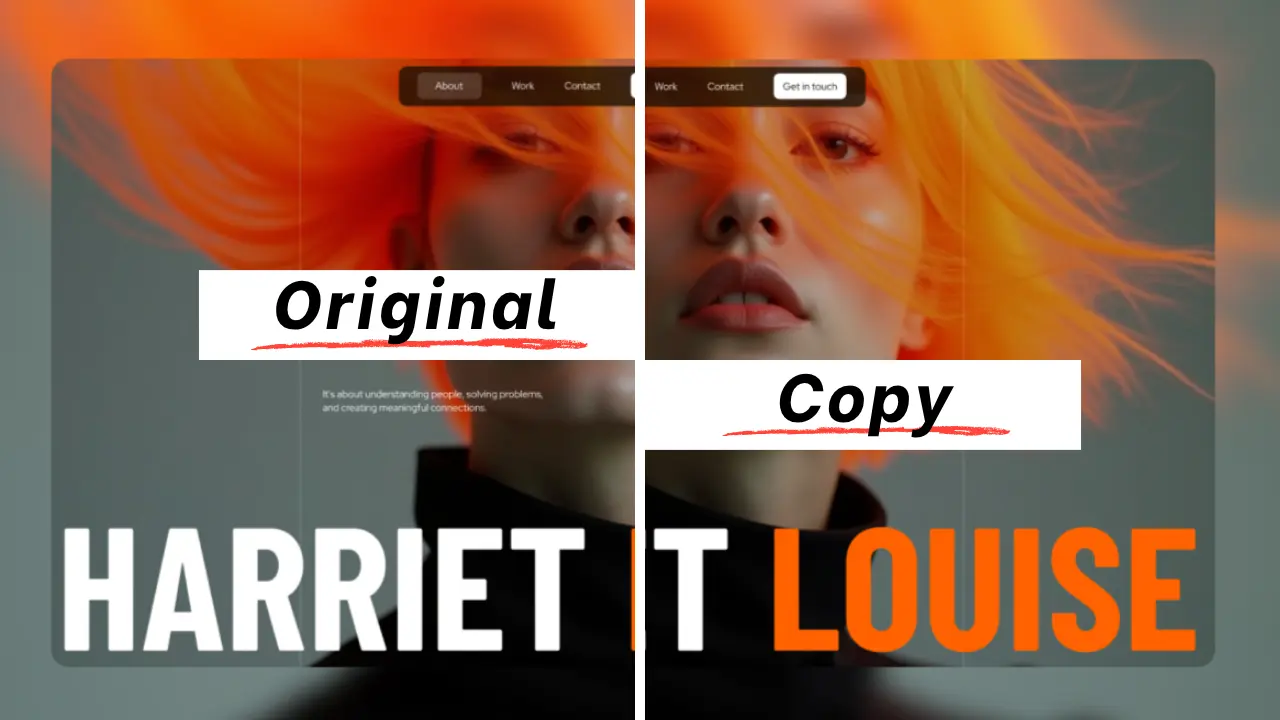
Have you ever wanted to download a website's content and assets including its page structure, stylesheets, media files and all other assets? If yes then you are on then you are in the right place. Well cloning a website is exactly what you want and we will see here how to clone a website in just a few steps.
What Does It Mean to Clone a Website?
Cloning a website means creating a complete, functional copy of its files i.e. HTML, CSS, JavaScript, images, videos and all other assets and saving them to your own device. Unlike a simple screenshot or a single saved webpage, a proper clone preserves the site's structure, its all pages, links, and styling still work when you open the files locally.
Steps to Clone a Website and Download It ZIP file
Now to do this there are several tools available e.g. HTTrack, Cyotek WebCopy, WebCloner, etc. Here we will use WebCloner because it's easy to use and you don't need to download or install anything to your system.
Step 1: Copy the Website URL
Open to the website you want to clone and then copy its URL from the address bar (e.g. https://example.com).
Step 2: Go to the WebCloner
Open the link: https://webcloner.tech in your browser and create a new account here (if you already have an account then login). After that, paste the URL into the input field and click on “Start Cloning”, it will process the URL and automatically detect all the files & assets.
Note: Sites with a large number of pages may take a little longer, so give it a moment to finish crawling.
Step 3: Download the ZIP file
After the processing is complete download the ZIP file. Unzip the file and you will see that the whole website's code is present in a structured way. Open the index.html file into your browser to access the downloaded website locally.
What You Can Do With Your Cloned Website
Once you have your ZIP file, you can:
- Edit the code of that site and can do whatever you want.
- Upload it to a new hosting e.g. you can use Cloudflare, Vercel, Netlify, etc. to host it for free.
- Keep it as an offline archive
- Reference the code for learning purposes
- Use the website's design to your own project
FAQ
Is it free to clone a website?
Many website cloning tools, including WebCloner, offer free options for basic cloning. Although if you want to use its other feature e.g. WordPress Export you should have a paid plan.
Can I clone any website?
Technically, most public websites can be cloned. However, you should only clone sites you own or have permission to copy, to stay on the right side of copyright law.
Will the cloned site work exactly like the original?
Static content (HTML, CSS, images) typically clones very well. Server-side features like login systems, databases, or forms usually won't function in a static clone since they depend on backend processing.
What's the difference between cloning a website and just saving a webpage?
Saving a single webpage (like with “Save As” in your browser) only captures that one page. Cloning a website captures the entire site — all pages, assets, and structure — as one complete package.